if you've used Ruby LSP in VS Code, You're probably familiar with its ability to navigate between controller actions, route definition and view files using the Code Lens feature. In this post, we'll walk through configuring Neovim to achieve the same functionality.


Prerequisites
this guide uses kickstart.nvim as its foundation. However, the concepts and techniques discussed here can be applied to any Neovim configuration. Let's dive in!
Configuring Ruby LSP
Enabling Code Lens Information
first, we need to enable the display of route information and "Jump to View" indicators arount controller actions. By default, we can trigger this manually using the command :lua vim.lsp.codelens.refresh.
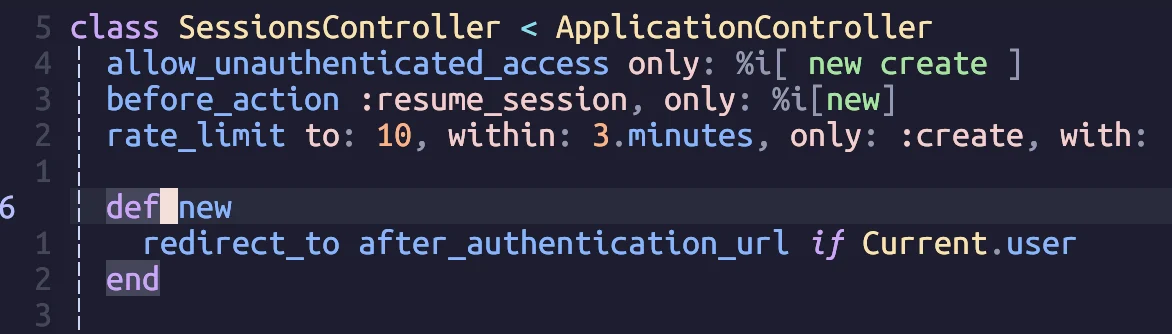
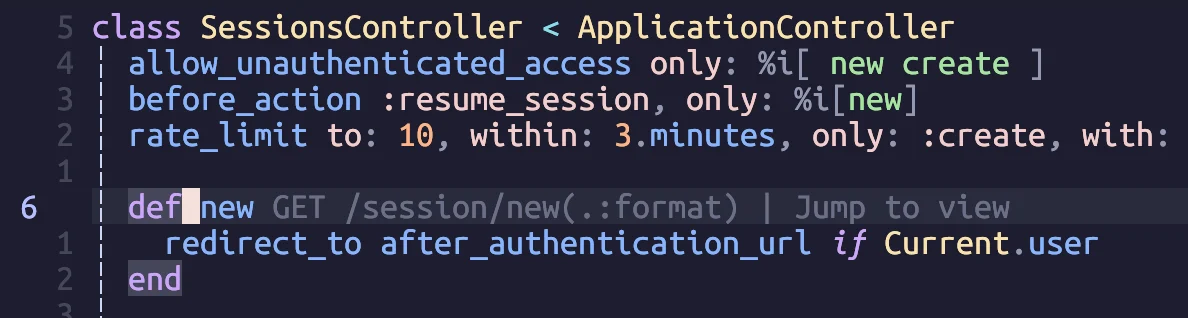
Automating Code Lens Updates
Rather than manually refreshing Code Lens, we can automate this process. taking inspiration from kickstart.nvim's existing code, we'll add logic to check for LSP client availability and Code Lens support. when both conditions are met, we'll automatically trigger the refresh function for the current buffer.
+    if client and client.server_capabilities.codeLensProvider then
+      vim.api.nvim_create_autocmd({ 'BufEnter', 'CursorHold', 'InsertLeave' }, {
+        buffer = event.buf,
+        callback = vim.lsp.codelens.refresh,
+      })
+    end

    -- The following code creates a keymap to toggle inlay hints in your
    -- code, if the language server you are using supports them
    --
    -- This may be unwanted, since they displace some of your code
    if client and client.supports_method(vim.lsp.protocol.Methods.textDocument_inlayHint) then
        map('<leader>th', function()
          vim.lsp.inlay_hint.enable(not vim.lsp.inlay_hint.is_enabled { bufnr = event.buf })
        end, '[T]oggle Inlay [H]ints')
    end
Adding Ruby LSP Configuration
local servers = {
+ ruby_lsp = {
+   on_attach = function(client, bufnr)
+     vim.keymap.set('n', '<leader>cl', vim.lsp.codelens.run, { noremap = true, silent = true })
+
+     client.commands = client.commands or {}
+
+     client.commands['rubyLsp.openFile'] = function(command)
+       local file_path = command.arguments[1][1]
+
+       local path, line = string.match(file_path, '(.+)#L(%d+)')
+       path = path or file_path -- if no line number, use the whole path
+
+       path = string.gsub(path, 'file://', '')
+       vim.cmd('edit ' .. path)
+
+       if line then
+         vim.cmd(line)
+       end
+     end
+   end,
+ },
  lua_ls = {
    ...
  },
}

require('mason-lspconfig').setup {
  handlers = {
    function(server_name)
      local server = servers[server_name] or {}
      server.capabilities = vim.tbl_deep_extend('force', {}, capabilities, server.capabilities or {})

+     server.on_attach = server.on_attach or function(client, bufnr) end
      require('lspconfig')[server_name].setup(server)
    end,
  },
}
Understanding the configuration
Let's break down the key components of our configuration:
- Keybinding Setup: we set keymap
<leader>clto triggervim.lsp.codelens.run. which displays the Code Lens popup for navigationg to route information or view files.
vim.keymap.set('n', '<leader>cl', vim.lsp.codelens.run, { noremap = true, silent = true })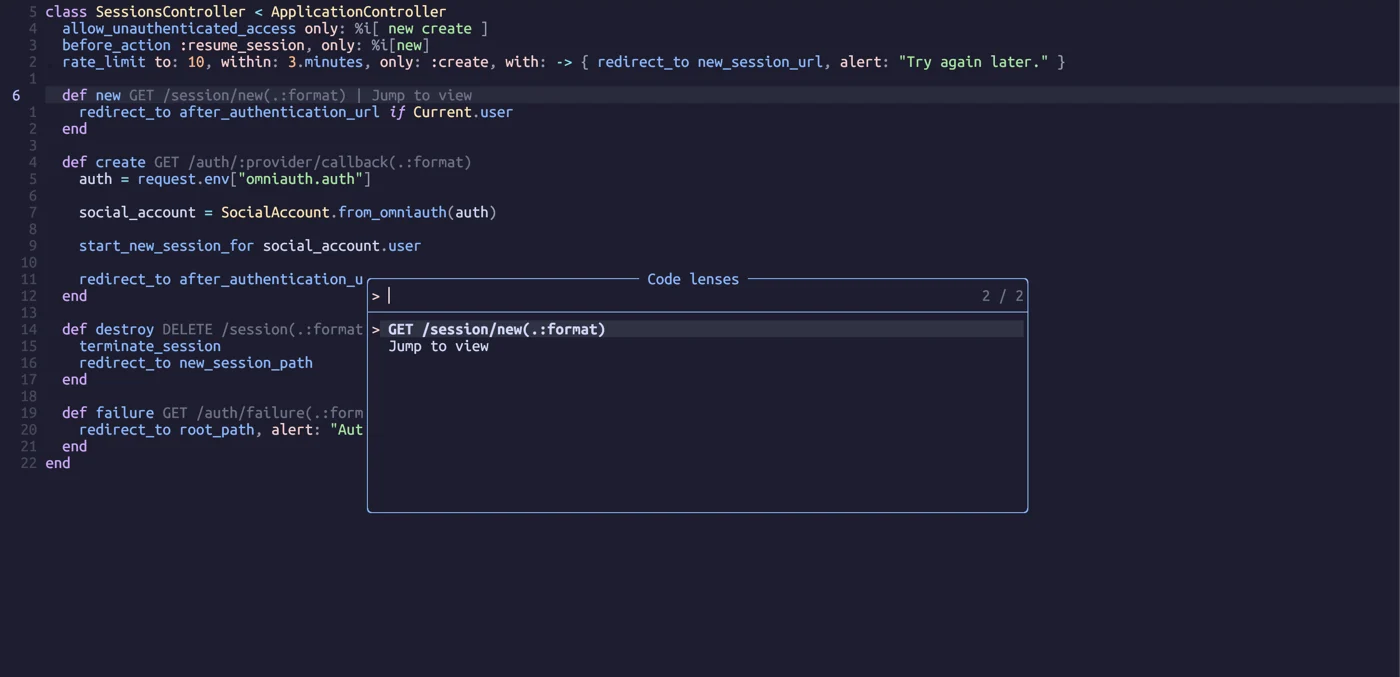
- Custom Command Handler: we implement the
rubyLsp.openFilecommand handler to provess navigation requests from the LSP client. this implementation is based on the Ruby LSP source code, which provides file paths in the formatfile://path/to/file.rb#L12.
client.commands = client.commands or {}

client.commands['rubyLsp.openFile'] = function(command)
  local file_path = command.arguments[1][1]

  local path, line = string.match(file_path, '(.+)#L(%d+)')
  path = path or file_path -- if no line number, use the whole path

  path = string.gsub(path, 'file://', '')
  vim.cmd('edit ' .. path)

  if line then
    vim.cmd(line)
  end
end- LSP Server Intgration: Finally, we ensure our LSP server handles these commands by setting up the appropriate
on_attachfunction
server.on_attach = server.on_attach or function(client, bufnr) endConclusion
With this configuration, we've successfully implemented VS Code-style navigation features in Neovim using Ruby LSP. This enhancement makes navigating Rails projects in Neovim more efficient and intuitive. The same approach can be used to implement additional LSP commands as needed.
You got a collectible· Item get
Ancient Wheel
Common
- Region
- Tech Highlands
- Found near
- Neovim · Rails · Ruby
- Discovered
- Journey
- 2 min · 4 travellers so far
Earned by finishing this quest. The more travellers who read it, the rarer it grows.

Loading comments…