Raycast setups that make me more productive

After using Alfred for years, I switched to Raycast mainly for its clean UI and built-in extension store. Here are the core setups and shortcuts I rely on every day.

What is Raycast

Raycast is an alternative to macOS’s native Spotlight launcher, with significantly more features and customization options. You might have heard of Alfred, another popular launcher. I used Alfred for years, but switched to Raycast for two main reasons:

  1. Built-in extension store - No need to hunt for extensions elsewhere
  2. Modern UI - Clean design that feels native to macOS

Note: Alfred has since added a gallery, but Raycast’s ecosystem feels a bit more frictionless to browse and install.

Tip 1: Text Snippets with Smart Triggers

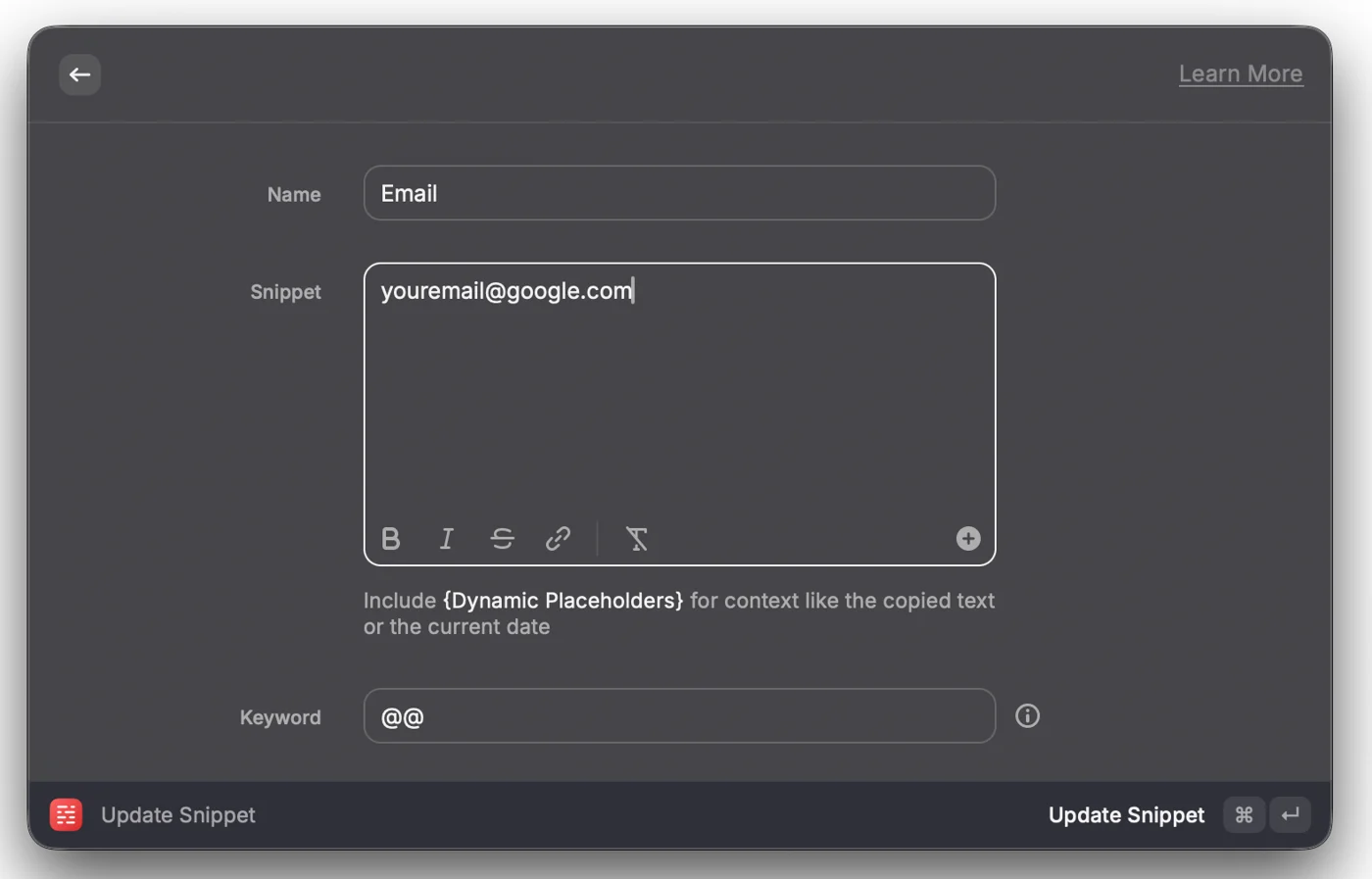
I type my email address dozens of times a day. Instead of typing it out each time, I’ve set up a snippet in Raycast: when I type @@, it automatically expands to my full email address.

Why Raycast over macOS Keyboard Settings?

  • Centralized management with all my other shortcuts
  • Works consistently across all apps
  • Can include dynamic variables (like current date)

Example snippets I use:

  • @@ -> my email address
  • ;date -> 2025-11-17 (current date)

Tip 2: Hyper Key + App Hotkeys

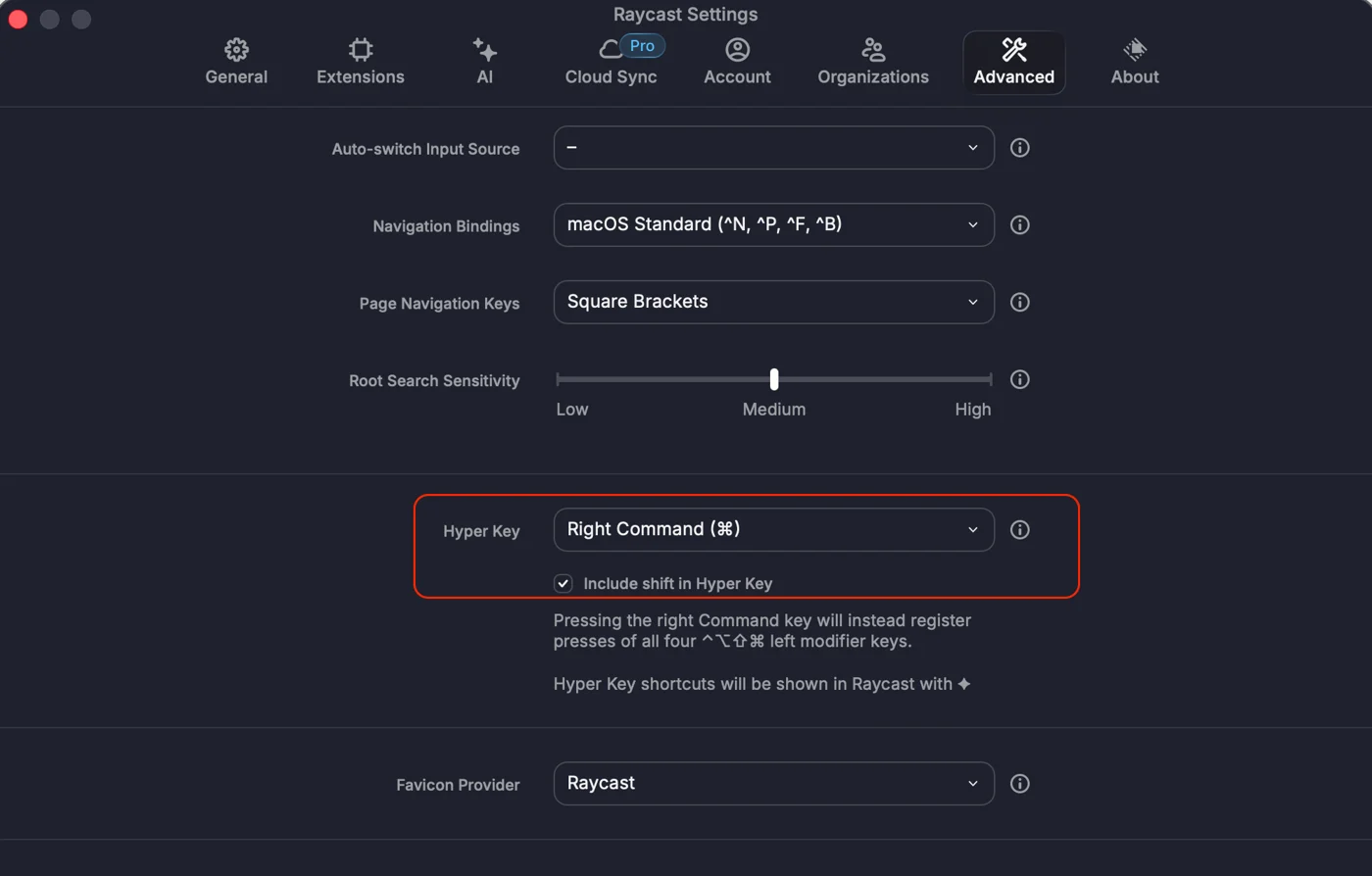
I learned this trick from Why I Use Only One Monitor. The setup relies on using a Hyper Key instead of regular modifier keys.

What’s a Hyper Key?

A Hyper Key maps an unused key (like Right Command or Caps Lock) to trigger all four modifiers at once (⌘⌥⌃⇧). This creates a unique modifier that never conflicts with app-specific shortcuts.

My setup:

  • Hyper + B -> Browser (Chrome)
  • Hyper + C -> Claude
  • Hyper + W -> Writing tool (iA Writer)

Tip 3: Quickly toggle terminal

I use Neovim in Ghostty, and I’ve bound ⌘ + . to toggle the terminal window.

Why ⌘ + . instead of Hyper + T?

Old habits die hard. I’ve been using this binding since my iTerm2 days, and it’s deeply ingrained in my muscle memory. The key combination is easy to hit without looking.

This binding works system-wide: press it once to bring up Ghostty, press it again to hide it. Great for quick terminal tasks without switching spaces.

Tip 4: Clipboard history

Raycast’s clipboard history search is one of those features that quickly becomes indispensable.

When writing or refactoring code, I often need to copy multiple snippets from different files. Instead of switching back and forth repeatedly, I copy them all in sequence, jump to the target file, hit ⌘ + Shift + V, and paste them in order. The fuzzy search also makes it easy to find links or text copied hours earlier.

Summary

None of these setups are particularly complex, but together they remove a lot of small friction points throughout the workday. Centralizing snippets, app switching, and clipboard management into a single launcher has made my desktop environment much calmer to work in.

Related
Claude Code · macOS When Claude Code Can't Find Git (But Git Works Fine in Terminal)

Claude Code's desktop app kept insisting I install Git, even though git ran perfectly in my terminal. The real culprit wasn't Xcode Command Line Tools or a broken PATH — it was a dead Homebrew symlink from 2022 sitting first in my resolution order. Here's the full debugging trail, including all the dead ends.

Jul 23, 2026
All posts