When Claude Code Can't Find Git (But Git Works Fine)

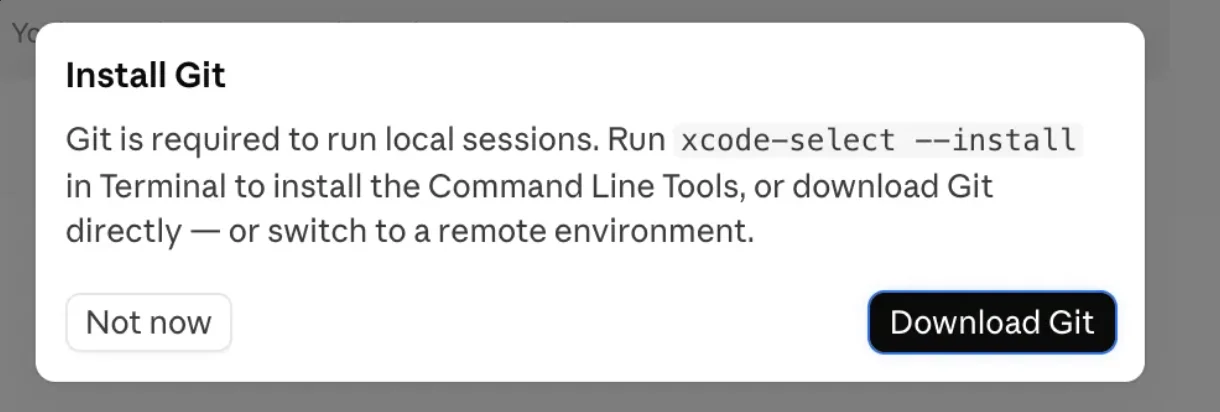
I hit a frustrating little problem the other day: the Claude Code panel inside the Claude desktop app kept popping up a dialog telling me to install Git.

Claude Code's Install Git dialog

Git is required to run local sessions. Run xcode-select --install in Terminal to install the Command Line Tools, or download Git directly — or switch to a remote environment.

The catch? Git was already installed. Running git --version in my terminal returned a version instantly. Claude Code in the terminal worked fine. It was only the desktop app that refused to believe Git existed.

I’m on the macOS 27 beta, so my first guess was “beta problem.” That guess cost me about an hour. Here’s the whole detour, wrong turns and all.

First guess: the Command Line Tools

On macOS, /usr/bin/git isn’t really Git. It’s a shim that hands off to whatever developer directory xcode-select points at. Major OS updates love to leave that pointer stale, so a broken Command Line Tools install is the textbook cause of “git suddenly stopped working” after an upgrade.

On a beta OS the Command Line Tools package often hasn’t been published to Software Update yet, so I downloaded the .dmg directly from the Apple Developer downloads page, installed it, and re-pointed the active developer directory:

sudo xcode-select -s /Library/Developer/CommandLineTools
git --version   # git version 2.54.0 (Apple Git-157)
clang --version # Apple clang version 21.0.0

Everything checked out. git worked. clang worked. And the desktop app still showed the dialog.

So if git works fine in my shell but the app can’t see it, maybe git isn’t the problem. Maybe the problem is what the app thinks my environment looks like.

Okay, maybe it’s the GUI PATH

This one trips up a lot of macOS developers. When you launch an app from the Dock or Spotlight, it does not inherit the PATH from your .zshrc. GUI apps get a bare launchd environment. So a binary your shell finds happily can be completely invisible to a GUI-launched app.

Claude’s desktop app also caches its environment at launch. Since I’d been fixing xcode-select while the app was already running, its view of the world was stale regardless. A full quit-and-relaunch (right-click the Dock icon → Quit, not just closing the window) is the first thing to try whenever the app’s environment seems out of date.

I checked what the launchd environment actually had:

launchctl getenv PATH
# (empty)

Empty. So I gave GUI apps a real PATH to inherit:

sudo launchctl config user path "/Library/Developer/CommandLineTools/usr/bin:/usr/bin:/bin:/usr/sbin:/sbin"

After a reboot, launchctl getenv PATH returned the expected value. I relaunched the app, feeling pretty confident.

Still broken.

So now I’d fixed two real problems — a stale CLT pointer and an empty GUI PATH. Both were worth fixing. Neither one made the dialog go away.

I finally stopped guessing and went looking at what the app was actually doing. There’s an open GitHub issue (#54754) for exactly this symptom, and its logs had the answer:

Failed to spawn /Users/xxx/bin/git: spawn /Users/xxx/bin/git EACCES

The app wasn’t failing to find Git. It was finding the wrong Git — one in the user’s home directory — and failing to execute it (EACCES = permission denied). The app spawns the first git in resolution order and stops there. If that first hit is broken, it doesn’t fall through to the working one the way an interactive shell does.

So the real question was: what’s the first git on my system? Not the one my shell happens to settle on — the first one in order.

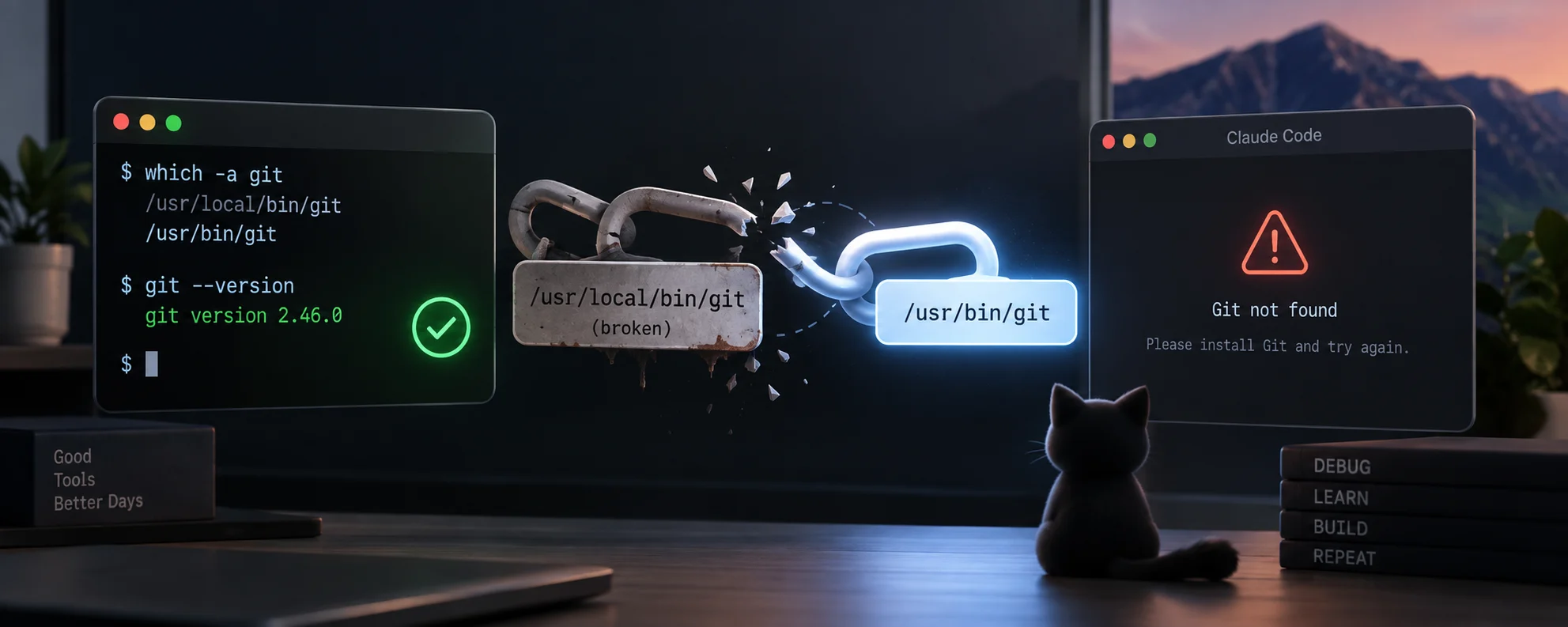
which -a git
# /usr/local/bin/git
# /usr/bin/git

There it was. /usr/local/bin/git sat ahead of the system Git. My shell fell through to /usr/bin/git without complaint, which is exactly why everything looked fine in the terminal. But the app grabbed /usr/local/bin/git first.

What was it?

ls -la /usr/local/bin/git
# lrwxr-xr-x  1 epona  admin  28 Feb  8  2022 /usr/local/bin/git -> ../Cellar/git/2.35.1/bin/git

A symlink. From February 2022. It pointed into ../Cellar/git/2.35.1/, an old Intel Homebrew install that’s long gone. (/usr/local is the Intel Homebrew prefix; on Apple Silicon, Homebrew lives under /opt/homebrew.) It had been dead for years. My shell just quietly stepped over it every time, so I never noticed — until an app came along that grabs the first match and doesn’t look any further.

The fix was one line:

sudo rm /usr/local/bin/git
which -a git
# /usr/bin/git

git --version
# git version 2.54.0 (Apple Git-157)

Quit the app, relaunched, and the dialog was gone.

What I wish I’d checked first

None of it was the beta OS, or the Command Line Tools, or the launchd PATH. It was a dead symlink sitting at the front of the line. And that kind of bug is sneaky, because your shell hides it from you. When it hits a broken first match it just moves on to the next one, so everything looks fine. An app that grabs the first git and stops doesn’t get that courtesy.

So when a tool works in your terminal but an app swears it’s missing, don’t blame the tool. Look at the order things resolve in. And use which -a, not plain which — I’d only ever run which git, which would have shown me /usr/local/bin/git and I’d have shrugged and moved on. The -a is the whole point; it lists every match in order, which is the only way you’d ever spot something shadowing the real one.

The other thing I keep re-learning: I fixed two real problems on the way here, and neither was the actual bug. That’s easy to forget mid-debug. Fixing something that was broken feels like progress even when it doesn’t touch the thing you’re chasing. What finally got me there wasn’t another theory — it was reading the log line and seeing the actual path the app tried to run. I should have done that an hour earlier.

If Claude Code (or any GUI dev tool, honestly) keeps telling you a perfectly good tool is missing, run which -a <tool> and look at what’s first in the list. Decent chance something old and dead is standing at the front.

Related
AI · Claude Code Building Lexio with Two Claudes: A Workflow That Actually Works

How I use Claude Projects for architecture decisions and Claude Code for implementation—keeping thinking and coding deliberately separate, with Lexio as a real-world example.

Mar 13, 2026
macOS Raycast setups that makes me more productive

As a developer constantly switching contexts, these 5 Raycast setups have transformed my daily workflow. Here's exactly how I use them.

Nov 18, 2025
Claude Code · AI Switching from Claude to ChatGPT

I recently switched from Claude to ChatGPT—here’s why, and what I’ve learned along the way.

Sep 20, 2025
All posts